
- The methods listed below can be followed on BOTH PC and Mac users.
- Your iPhone/iPod Touch must be updated to firmware 3.1.2 via iTunes before beginning this process.
- For users that already have a jailbroken device and want to keep their jailbroken apps, before you begin the process below, download “AptBackup” from Cydia and back up your jailbroken apps. Now connect your device to iTunes and backup your device using the iTunes backup process. After you do the jailbreak process below, redownload AptBackup from Cydia and plug your device into your computer. Using AptBackup, restore your apps.
- If you are already jailbroken and/or unlocked and have problems with WiFi, GPS or Youtube, click here.
The following is how to Jailbreak and Unlock the iPhone 3G/3GS on 3.1.2 Firmware
1.) Plug your iPhone into iTunes, do a backup and then click “Update” to install firmware 3.1.2. After the update, eject your iPhone from iTunes using the “eject” button and close iTunes. Leave your iPhone connected to your computer.
2.) Click on the PC or Mac links to download Blackra1n for PC or MAC. Save the file to your computer desktop.
3.) Locate the downloaded file “Blackra1n” and double-click on it. Click on "Make it ra1n" to launch the tool.

4.) Your iPhone will now enter into Recovery Mode. If iTunes opens, simply close it.


5.) After the reboot, Blackra1n will indicate that your iPhone has been jailbroken. Click “OK”. You can also close Blackra1n now if it is still open.
6.) Once at your iPhone home-screen, go to Settings > WiFi and turn on WiFi.
7.) On your iPhone home-screen, you will see a new Blackra1n icon. Tap on it.

8.) When Blackra1n opens, tap on Cydia (or Rock) and tap “Install” in the top right corner.
9.) Cydia (or Rock) will now be visible on your iPhone home-screen. Your iPhone is now Jailbroken.
How to Unlock the iPhone 3G/3GS
1.) On your iPhone home-screen, tap on the Blackra1n icon.
2.) In the Blackra1n app, tap on “Sn0w”. Your iPhone will now be unlocked.

Note: You may go back into the Blackra1n app on your home-screen and use the Uninstall toggle to remove the Blackra1n app from your home-screen. This does not affect the jailbreak or unlock.
---------------------------------------------------------------------------------
The following is how to Unlock the iPhone 3G/3GS if you are already Jailbroken and running Baseband 05.11.07
1.) On your iPhone home-screen, tap on the Cydia icon.
2.) If Cydia prompts you for updates, install them all.
3.) In Cydia, tap on the “Manage” tab at the bottom.

4.) Tap on the “Sources” button.
5.) Tap on the “Edit” button in the top right corner of the screen and then tap the “Add” button in the top left corner.
6.) Type in http://www.blackra1n.com and then tap “Add Source“.

7.) Now tap on the “Done” button in the top right corner of the screen.
8.) Tap on “blackra1n” from the “Sources” List under the “Manage” tab.

9.) Select “blacksn0w” from the list of packages and then tap “Install” in the top right corner of the screen and then tap “Confirm“.

10.) After the unlock is installed, tap on “Return to Cydia“. Your iPhone is now unlocked.
--------------------------------------------------------------------------------------
The following is how to Jailbreak and Unlock the iPhone 2G on 3.1.2 Firmware
1.) Plug your iPhone into iTunes, do a backup and then click “Update” to install firmware 3.1.2. After the update, eject your iPhone from iTunes using the “eject” button and close iTunes. Leave your iPhone connected to your computer.
2.) Click on the appropriate link for PC or MAC and download Blackra1n. Save the file to your computer desktop.
3.) Locate the downloaded file “Blackra1n” and double-click on it. Then click on the "Make it Ra1n" button.

4.) Your iPhone will now enter into Recovery Mode. If iTunes opens, simply close it.


5.) After the reboot, Blackra1n will indicate that your iPhone has been jailbroken. Click “OK”. You can also close Blackra1n now if it is still open.
6.) Once at your iPhone home-screen, go to Settings > WiFi and turn on WiFi.
7.) On your iPhone home-screen, you will see a new Blackra1n icon. Tap on it.

8.) When Blackra1n opens, tap on Cydia (or Rock) and tap “Install” in the top right corner.
9.) Cydia (or Rock) will now be visible on your iPhone home-screen. Your iPhone is now Jailbroken.
How to Unlock the iPhone 2G
1.) On your iPhone home-screen, tap on the Blackra1n icon.
2.) In the Blackra1n app, tap on “Cydia” to install Cydia. (If you already installed Cydia, move to Step 3)

3.) Cydia will prompt you for updates. Tap on “Complete Upgrade” and install them all.
4.) In Cydia, search for the app “BootNeuter” and install the app.
5.) Open BootNeuter and make sure the settings match the image below:

6.) When the settings match the above image, tap on “Flash” in the top right corner. The iPhone 2G will now be unlocked.
Note: You may go back into the Blackra1n app on your home-screen and use the Uninstall toggle to remove the Blackra1n app from your home-screen. This does not affect the jailbreak or unlock.
--------------------------------------------------------------------------------------
The following is how to Jailbreak the iPod Touch on 3.1.2 Firmware
1.) Plug your iPod Touch into iTunes, do a backup and then click “Update” to install firmware 3.1.2. After the update, eject your iPod Touch from iTunes using the “eject” button and close iTunes. Leave your iPod Touch connected to your computer.
2.) Click on the appropriate link for PC or MAC and download Blackra1n. Save the file to your computer desktop.
3.) Locate the downloaded file “Blackra1n” and double-click on it. Click on the "Make it Ra1n" button.
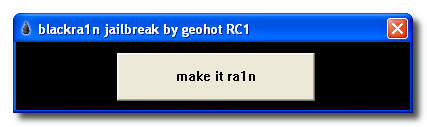
4.) Your iPod Touch will now enter into Recovery Mode. If iTunes opens, simply close it.
5.) After the reboot, Blackra1n will indicate the your iPod Touch has been jailbroken. Click “OK”. You can also close Blackra1n now if it is still open.
6.) Once at your iPod Touch home-screen, go to Settings > WiFi and turn on WiFi.
7.) On your iPod Touch home-screen, you will see a new Blackra1n icon. Tap on it.
8.) When Blackra1n opens, tap on Cydia (or Rock) and tap “Install” in the top right corner.
9.) Cydia (or Rock) will now be visible on your iPod Touch home-screen. Your iPhone is now Jailbroken.
Note: You may go back into the Blackra1n app on your home-screen and use the Uninstall toggle to remove the Blackra1n app from your home-screen. This does not affect the jailbreak.
--------------------------------------------------------------------------------------
The following is how to Revert Your iPhone 2G/3G/3GS or iPod Touch Back To “Normal”
1.) Open iTunes and plug your iPhone 2G/3G/3GS or iPod Touch in via the USB. Backup your iPhone/iPod Touch if iTunes allows you to.
2.) When iTunes recognizes the iPhone/iPod Touch, click on the “Restore” button in iTunes. This will restore your iPhone/iPod Touch with fresh 3.1.2 firmware.
3.) After the restore is complete, iTunes will prompt you to Set up a New Device or Restore from Back Up from an existing backup (the backup from step 1). Choose which ever method you want and let iTunes process.
4.) After the processing is complete, your iPhone/iPod Touch will be loaded with the fresh 3.1.2 firmware or loaded with your back up that you may have chosen.
5.) Eject the iPhone/iPod Touch from iTunes using the “eject” button and disconnect the USB cable from the iPhone/iPod Touch. Turn the iPhone/iPod Touch off and then turn the iPhone/iPod Touch back on.
Use Bonus Code: TGiPJB for 100% up to $100 on 1st Deposit

