Still an iPhone 3G user and can't seem to find a Jailbreak for it. Do not fret! Here is your complete iPhone 3G iOS 4.2.1 Jailbreak Kit. You can download it HERE!
Have fun!!!
AaRMorr

Showing posts with label iPhone. Show all posts
Showing posts with label iPhone. Show all posts
Thursday, January 12, 2012


Wednesday, January 11, 2012
Importing contacts stored on a SIM card
While iPhone does not use the SIM to store contact names and phone numbers, you can still copy your contacts from a SIM card to your iPhone. You can use your old phone's SIM card (if your old phone is not an iPhone) to transfer the primary phone number for each of your contacts from the SIM card. Ensure that the old SIM card you're going to place into the new iPhone is the same type of SIM card. Failure to do so may result in the SIM card becoming stuck in the new iPhone. Additional numbers may not import, or may import as more than one contact. Follow these steps to import the information off the SIM card:
1. Remove the SIM card from your iPhone and replace it with the SIM card from your old phone.
2. Your phone may need to reactivate. If so, connect to iTunes.
3. Tap Settings > Mail, Contacts, Calendars > Import SIM Contacts.
 4. Remove your old SIM card from your new iPhone and reinstall the SIM card that came with it.
1. Remove the SIM card from your iPhone and replace it with the SIM card from your old phone.
2. Your phone may need to reactivate. If so, connect to iTunes.
3. Tap Settings > Mail, Contacts, Calendars > Import SIM Contacts.

How to Tether an iPhone to an iPad
Via Wi-Fi
1. Tap the "Settings" button on your iPhone.
2. Tap on the "General" button on your iPhone.
3. Tap the "Network" button on your iPhone.
4. Tap "Internet Tethering" on your iPhone.
5. Tap "On" to turn the tethering option on.
6. Tap the "Settings" button on your iPad.
7. Tap on the "WiFi" button on your iPad.
8. Tap on your iPhone when it appears under "Choose a Network."
Via Bluetooth
1. Tap the "Settings" icon on the iPhone's home screen, followed by the "Personal Hotspot" option. Slide the "Personal Hotspot" switch to the "ON" position to enable the device's personal hotspot feature.
2. Tap the "Settings" icon on the iPad's home screen, followed by the "General" option. Tap the "Bluetooth" option and tap the iPhone listed beneath the "Devices" heading.
3. Tap the "Pair" button on the iPad when prompted. Tap the "Pair" button on the iPhone when prompted. Once you've pressed both "Pair" buttons, your iPad and iPhone will be tethered.
1. Tap the "Settings" button on your iPhone.
2. Tap on the "General" button on your iPhone.
3. Tap the "Network" button on your iPhone.
4. Tap "Internet Tethering" on your iPhone.
5. Tap "On" to turn the tethering option on.
6. Tap the "Settings" button on your iPad.
7. Tap on the "WiFi" button on your iPad.
8. Tap on your iPhone when it appears under "Choose a Network."
Via Bluetooth
1. Tap the "Settings" icon on the iPhone's home screen, followed by the "Personal Hotspot" option. Slide the "Personal Hotspot" switch to the "ON" position to enable the device's personal hotspot feature.
2. Tap the "Settings" icon on the iPad's home screen, followed by the "General" option. Tap the "Bluetooth" option and tap the iPhone listed beneath the "Devices" heading.
3. Tap the "Pair" button on the iPad when prompted. Tap the "Pair" button on the iPhone when prompted. Once you've pressed both "Pair" buttons, your iPad and iPhone will be tethered.
How to Transfer Information from your old iPhone to Another iPhone
This step is useful if you hae purchased or upgraded to a new iPhone. To begin this process make sure you have installed and run iTunes on your computer. Click here for the latest version of iTunes.
1. Connect your current or old iPhone to iTunes and sync it. Make sure to back up your information as well.
2. Connect your new iPhone to iTunes to the computer you made a backup on.
3. iTunes will ask you if you want to restore from a backup or set up your new iPhone as a new phone. When prompted, select the backup of your current iPhone. If iTunes does not prompt you to select a backup to restore when you connect your new iPhone, use iTunes to restore iOS on your new iPhone and try this step again.
Note: During the process of restoring your old backup to a new iPhone, you may see the iTunes progress bar pause. If this occurs, please allow for additional time for the upgrade to complete.
4. After iTunes finishes restoring the backup you selected to your new iPhone, the iPhone will restart.
5. When your new iPhone appears in the iTunes window, select it.
6. Click the various tabs (Music, Photos, etc) and verify or change the items you want to sync.
7. Click Apply to sync your new iPhone with iTunes.
1. Connect your current or old iPhone to iTunes and sync it. Make sure to back up your information as well.
2. Connect your new iPhone to iTunes to the computer you made a backup on.
3. iTunes will ask you if you want to restore from a backup or set up your new iPhone as a new phone. When prompted, select the backup of your current iPhone. If iTunes does not prompt you to select a backup to restore when you connect your new iPhone, use iTunes to restore iOS on your new iPhone and try this step again.
Note: During the process of restoring your old backup to a new iPhone, you may see the iTunes progress bar pause. If this occurs, please allow for additional time for the upgrade to complete.
4. After iTunes finishes restoring the backup you selected to your new iPhone, the iPhone will restart.
5. When your new iPhone appears in the iTunes window, select it.
6. Click the various tabs (Music, Photos, etc) and verify or change the items you want to sync.
7. Click Apply to sync your new iPhone with iTunes.
How to setup Shaw email on the iPhone
There has been a recent change to the Shaw email system that allows Shaw customers to easily setup email on the iPhone and other mobile devices. This change allows Shaw customers to seamlessly send and receive email whether connected to WiFi or a wireless service provider.
How do I set this up?
1. Go to https://webmail.shaw.ca/uwc/auth and log in.

2. Click Preferences, Mobile Access, and then Enabled.

Once you have enabled Mobile Access, follow the steps below:
From your iPhone / iPad
Tap the Settings icon on the Home screen.
Select Mail, Contacts, Calendars.
Select Add Account…
Select Other.
Select Add Mail Account and enter your account information.
Select Next.
Choose the POP account button.
Enter the following information in the spaces provided under Incoming Mail Server:
Host Name – Enter pop.shaw.ca
User Name – Your Shaw email address without the @shaw.ca
Password – Enter your email password.
Enter the following information in the spaces provided under Outgoing Mail Server:
Host Name – Enter mail.shaw.ca
User Name – Your Shaw email address without the @shaw.ca
Password – Enter your email password.
10. Click Save.
You will see a message: ‘Cannot Connect Using SSL’ – select Yes.
How do I set this up?
1. Go to https://webmail.shaw.ca/uwc/auth and log in.

2. Click Preferences, Mobile Access, and then Enabled.

Once you have enabled Mobile Access, follow the steps below:
From your iPhone / iPad
Tap the Settings icon on the Home screen.
Select Mail, Contacts, Calendars.
Select Add Account…
Select Other.
Select Add Mail Account and enter your account information.
Select Next.
Choose the POP account button.
Enter the following information in the spaces provided under Incoming Mail Server:
Host Name – Enter pop.shaw.ca
User Name – Your Shaw email address without the @shaw.ca
Password – Enter your email password.
Enter the following information in the spaces provided under Outgoing Mail Server:
Host Name – Enter mail.shaw.ca
User Name – Your Shaw email address without the @shaw.ca
Password – Enter your email password.
10. Click Save.
You will see a message: ‘Cannot Connect Using SSL’ – select Yes.
Thursday, June 23, 2011
Get UNLOCKED with Canada Post
Despite the ongoing Canada Post Labor disputes, Canada Post now has Unlocked wireless devices from your standard wireless cell phones to the latest Smartphone's on sale via the Canada Post website. Check out the great deals, specifically the iPhone SALE that is on right now. Canada Post is featuring a wide variety of Smartphones including the Samsung SGH-T959 Vibrant to the BlackBerry Bold 9780 and including the amazing and ever popular iPhone 4!! If you are in the market for an unlocked device that can be used on any network, you don't want to miss out on this.
If you do not know what is meant by an unlocked device read on:
An unlocked cell phone is a cellular telephone handset or smartphone that can be used with more than one service provider, making it easy for a user to switch from one cellular network to another.
The sequence of steps a user must perform in order to unlock a cell phone depends on the original communications service provider and on the manufacturer of the phone set. Some cell phone sets can be unlocked by inputting codes to modify the software in the unit. Other sets require the purchase of special cables or modification of the internal hardware as well as reprogramming of the phone's data settings. In the wake of the U.S. Copyright Office's decision in November 2006 to allow cell-phone unlocking for at least three years thereafter, numerous companies began to offer unlocking services for a fee.
Proponents of cell-phone unlocking argue that consumers should be free to change their network when a subscription contract expires without having to discard hardware they purchased outright. Some cell-phone service providers, unhappy with the Copyright Office's decision, are resisting the practice by making their cell-phone sets difficult or impossible to unlock.
For more information on unlocking your own device, contact your wireless service provider or Google it!!
If you do not know what is meant by an unlocked device read on:
An unlocked cell phone is a cellular telephone handset or smartphone that can be used with more than one service provider, making it easy for a user to switch from one cellular network to another.
The sequence of steps a user must perform in order to unlock a cell phone depends on the original communications service provider and on the manufacturer of the phone set. Some cell phone sets can be unlocked by inputting codes to modify the software in the unit. Other sets require the purchase of special cables or modification of the internal hardware as well as reprogramming of the phone's data settings. In the wake of the U.S. Copyright Office's decision in November 2006 to allow cell-phone unlocking for at least three years thereafter, numerous companies began to offer unlocking services for a fee.
Proponents of cell-phone unlocking argue that consumers should be free to change their network when a subscription contract expires without having to discard hardware they purchased outright. Some cell-phone service providers, unhappy with the Copyright Office's decision, are resisting the practice by making their cell-phone sets difficult or impossible to unlock.
For more information on unlocking your own device, contact your wireless service provider or Google it!!
Friday, March 11, 2011
Spring has sprung with updates!
Snow is melting, weather is nice and Apple has launched iOS 4.3 and iTunes 10.2.1.
This update contains new features and improvements, including the following:
* Personal Hotspot
- Share iPhone 4 cellular data with up to 5 devices (combination of up to 3 Wi-Fi, 3 Bluetooth, and 1 USB)
* iTunes Home Sharing
- Play music, movies, and TV shows from a shared iTunes library on a Mac or PC (requires iTunes 10.2)
* New AirPlay features
- Play videos from the Photos app including the Camera Roll album, iTunes previews, enabled third-party apps and websites on Apple TV
- Play slideshows from Photos on Apple TV using transitions available on Apple TV
* Faster Safari performance with Apple Nitro JavaScript engine
* HD video out using the Apple Digital AV Adapter
- View 720p HD videos from Videos app, iPod app, Photos, YouTube, Safari, Keynote, and enabled third-party apps on an HDMI display
* Ping features
- Push notifications for comments and follow requests
- Post and Like songs directly from the Now Playing screen
- Parental controls
* New Settings
- Messages setting for number of times to repeat an alert
- iPad side switch setting to lock screen rotation or mute audio notifications and sound effects
* Single tap conference call dialing with a pause to send a passcode
* Bug fixes
Happy updating, and remember jailbreakers.....WAIT!!
:-)
This update contains new features and improvements, including the following:
* Personal Hotspot
- Share iPhone 4 cellular data with up to 5 devices (combination of up to 3 Wi-Fi, 3 Bluetooth, and 1 USB)
* iTunes Home Sharing
- Play music, movies, and TV shows from a shared iTunes library on a Mac or PC (requires iTunes 10.2)
* New AirPlay features
- Play videos from the Photos app including the Camera Roll album, iTunes previews, enabled third-party apps and websites on Apple TV
- Play slideshows from Photos on Apple TV using transitions available on Apple TV
* Faster Safari performance with Apple Nitro JavaScript engine
* HD video out using the Apple Digital AV Adapter
- View 720p HD videos from Videos app, iPod app, Photos, YouTube, Safari, Keynote, and enabled third-party apps on an HDMI display
* Ping features
- Push notifications for comments and follow requests
- Post and Like songs directly from the Now Playing screen
- Parental controls
* New Settings
- Messages setting for number of times to repeat an alert
- iPad side switch setting to lock screen rotation or mute audio notifications and sound effects
* Single tap conference call dialing with a pause to send a passcode
* Bug fixes
Happy updating, and remember jailbreakers.....WAIT!!
:-)
Saturday, October 30, 2010
iPhone Firmware Files - Direct Downloads
Below are the direct links to the iPhone Firmware Files for every released firmware version.
Please note that if you use Safari you must disable the auto unzip feature (Safari->Preferences->General->Uncheck "Open Safe Files After Downloading") , or just use a different browser type.
1.0.0: iPhone1,1_1.0_1A543a_Restore.ipsw
1.0.1: iPhone1,1_1.0.1_1C25_Restore.ipsw
1.0.2: iPhone1,1_1.0.2_1C28_Restore.ipsw
1.1.1: iPhone1,1_1.1.1_3A109a_Restore.ipsw
1.1.2: iPhone1,1_1.1.2_3B48b_Restore.ipsw
1.1.3: iPhone1,1_1.1.3_4A93_Restore.ipsw
1.1.4: iPhone1,1_1.1.4_4A102_Restore.ipsw
2.0.0 (2G): iPhone1,1_2.0_5A347_Restore.ipsw
2.0.0 (3G): iPhone1,2_2.0_5A347_Restore.ipsw
2.0.1 (2G): iPhone1,1_2.0.1_5B108_Restore.ipsw
2.0.1 (3G): iPhone1,2_2.0.1_5B108_Restore.ipsw
2.0.2 (2G): iPhone1,1_2.0.2_5C1_Restore.ipsw
2.0.2 (3G): iPhone1,2_2.0.2_5C1_Restore.ipsw
2.1.0 (2G): iPhone1,1_2.1_5F136_Restore.ipsw
2.1.0 (3G): iPhone1,2_2.1_5F136_Restore.ipsw
2.2.0 (2G): iPhone1,1_2.2_5G77_Restore.ipsw
2.2.0 (3G): iPhone1,2_2.2_5G77_Restore.ipsw
2.2.1 (2G): iPhone1,1_2.2.1_5H1_Restore.ipsw
2.2.1 (3G): iPhone1,2_2.2.1_5H11_Restore.ipsw
3.0.0 (2G): iPhone1,1_3.0_7A341_Restore.ipsw
3.0.0 (3G): iPhone1,2_3.0_7A341_Restore.ipsw
3.0.0 (3GS): iPhone2,1_3.0_7A341_Restore.ipsw
3.0.1 (2G): iPhone1,1_3.0.1_7A400_Restore.ipsw
3.0.1 (3G): iPhone1,2_3.0.1_7A400_Restore.ipsw
3.0.1 (3GS): iPhone2,1_3.0.1_7A400_Restore.ipsw
3.1.0 (2G): iPhone1,1_3.1_7C144_Restore.ipsw
3.1.0 (3G): iPhone1,2_3.1_7C144_Restore.ipsw
3.1.0 (3GS): iPhone2,1_3.1_7C144_Restore.ipsw
3.1.2 (2G): iPhone1,1_3.1.2_7D11_Restore.ipsw
3.1.2 (3G): iPhone1,2_3.1.2_7D11_Restore.ipsw
3.1.2 (3GS): iPhone2,1_3.1.2_7D11_Restore.ipsw
3.1.3 (2G): iPhone1,1_3.1.3_7E18_Restore.ipsw
3.1.3 (3G): iPhone1,2_3.1.3_7E18_Restore.ipsw
3.1.3 (3GS): iPhone2,1_3.1.3_7E18_Restore.ipsw
4.0.0 (3G): iPhone1,2_4.0_8A293_Restore.ipsw
4.0.0 (3GS): iPhone2,1_4.0_8A293_Restore.ipsw
4.0.0 (4): iPhone3,1_4.0_8A293_Restore.ipsw
4.0.1 (3G): iPhone1,2_4.0.1_8A306_Restore.ipsw
4.0.1 (3GS): iPhone2,1_4.0.1_8A306_Restore.ipsw
4.0.1 (4): iPhone3,1_4.0.1_8A306_Restore.ipsw
4.0.2 (3G): iPhone1,2_4.0.2_8A400_Restore.ipsw
4.0.2 (3GS): iPhone2,1_4.0.2_8A400_Restore.ipsw
4.0.2 (4): iPhone3,1_4.0.2_8A400_Restore.ipsw
4.1.0 (3G): iPhone1,2_4.1_8B117_Restore.ipsw
4.1.0 (3GS): iPhone2,1_4.1_8B117_Restore.ipsw
4.1.0 (4): iPhone3,1_4.1_8B117_Restore.ipsw
4.2.1 (3G): iPhone1,2_4.2.1_8C148_Restore.ipsw
4.2.1 (3GS): iPhone2,1_4.2.1_8C148a_Restore.ipsw
4.2.1 (4): iPhone3,1_4.2.1_8C148_Restore.ipsw
4.3.0 (3GS): iPhone2,1_4.3_8F190_Restore.ipsw
4.3.0 (4 GSM): iPhone3,1_4.3_8F190_Restore.ipsw
4.3.1 (3GS): iPhone2,1_4.3.1_8G4_Restore.ipsw
4.3.1 (4 GSM): iPhone3,1_4.3.1_8G4_Restore.ipsw
4.3.2 (3GS): iPhone2,1_4.3.2_8H7_Restore.ipsw
4.3.2 (4 GSM): iPhone3,1_4.3.2_8H7_Restore.ipsw
4.2.7 (4 CDMA): iPhone3,3_4.2.7_8E303_Restore.ipsw
I will update this post as new firmware links become available.
Please note that if you use Safari you must disable the auto unzip feature (Safari->Preferences->General->Uncheck "Open Safe Files After Downloading") , or just use a different browser type.
1.0.0: iPhone1,1_1.0_1A543a_Restore.ipsw
1.0.1: iPhone1,1_1.0.1_1C25_Restore.ipsw
1.0.2: iPhone1,1_1.0.2_1C28_Restore.ipsw
1.1.1: iPhone1,1_1.1.1_3A109a_Restore.ipsw
1.1.2: iPhone1,1_1.1.2_3B48b_Restore.ipsw
1.1.3: iPhone1,1_1.1.3_4A93_Restore.ipsw
1.1.4: iPhone1,1_1.1.4_4A102_Restore.ipsw
2.0.0 (2G): iPhone1,1_2.0_5A347_Restore.ipsw
2.0.0 (3G): iPhone1,2_2.0_5A347_Restore.ipsw
2.0.1 (2G): iPhone1,1_2.0.1_5B108_Restore.ipsw
2.0.1 (3G): iPhone1,2_2.0.1_5B108_Restore.ipsw
2.0.2 (2G): iPhone1,1_2.0.2_5C1_Restore.ipsw
2.0.2 (3G): iPhone1,2_2.0.2_5C1_Restore.ipsw
2.1.0 (2G): iPhone1,1_2.1_5F136_Restore.ipsw
2.1.0 (3G): iPhone1,2_2.1_5F136_Restore.ipsw
2.2.0 (2G): iPhone1,1_2.2_5G77_Restore.ipsw
2.2.0 (3G): iPhone1,2_2.2_5G77_Restore.ipsw
2.2.1 (2G): iPhone1,1_2.2.1_5H1_Restore.ipsw
2.2.1 (3G): iPhone1,2_2.2.1_5H11_Restore.ipsw
3.0.0 (2G): iPhone1,1_3.0_7A341_Restore.ipsw
3.0.0 (3G): iPhone1,2_3.0_7A341_Restore.ipsw
3.0.0 (3GS): iPhone2,1_3.0_7A341_Restore.ipsw
3.0.1 (2G): iPhone1,1_3.0.1_7A400_Restore.ipsw
3.0.1 (3G): iPhone1,2_3.0.1_7A400_Restore.ipsw
3.0.1 (3GS): iPhone2,1_3.0.1_7A400_Restore.ipsw
3.1.0 (2G): iPhone1,1_3.1_7C144_Restore.ipsw
3.1.0 (3G): iPhone1,2_3.1_7C144_Restore.ipsw
3.1.0 (3GS): iPhone2,1_3.1_7C144_Restore.ipsw
3.1.2 (2G): iPhone1,1_3.1.2_7D11_Restore.ipsw
3.1.2 (3G): iPhone1,2_3.1.2_7D11_Restore.ipsw
3.1.2 (3GS): iPhone2,1_3.1.2_7D11_Restore.ipsw
3.1.3 (2G): iPhone1,1_3.1.3_7E18_Restore.ipsw
3.1.3 (3G): iPhone1,2_3.1.3_7E18_Restore.ipsw
3.1.3 (3GS): iPhone2,1_3.1.3_7E18_Restore.ipsw
4.0.0 (3G): iPhone1,2_4.0_8A293_Restore.ipsw
4.0.0 (3GS): iPhone2,1_4.0_8A293_Restore.ipsw
4.0.0 (4): iPhone3,1_4.0_8A293_Restore.ipsw
4.0.1 (3G): iPhone1,2_4.0.1_8A306_Restore.ipsw
4.0.1 (3GS): iPhone2,1_4.0.1_8A306_Restore.ipsw
4.0.1 (4): iPhone3,1_4.0.1_8A306_Restore.ipsw
4.0.2 (3G): iPhone1,2_4.0.2_8A400_Restore.ipsw
4.0.2 (3GS): iPhone2,1_4.0.2_8A400_Restore.ipsw
4.0.2 (4): iPhone3,1_4.0.2_8A400_Restore.ipsw
4.1.0 (3G): iPhone1,2_4.1_8B117_Restore.ipsw
4.1.0 (3GS): iPhone2,1_4.1_8B117_Restore.ipsw
4.1.0 (4): iPhone3,1_4.1_8B117_Restore.ipsw
4.2.1 (3G): iPhone1,2_4.2.1_8C148_Restore.ipsw
4.2.1 (3GS): iPhone2,1_4.2.1_8C148a_Restore.ipsw
4.2.1 (4): iPhone3,1_4.2.1_8C148_Restore.ipsw
4.3.0 (3GS): iPhone2,1_4.3_8F190_Restore.ipsw
4.3.0 (4 GSM): iPhone3,1_4.3_8F190_Restore.ipsw
4.3.1 (3GS): iPhone2,1_4.3.1_8G4_Restore.ipsw
4.3.1 (4 GSM): iPhone3,1_4.3.1_8G4_Restore.ipsw
4.3.2 (3GS): iPhone2,1_4.3.2_8H7_Restore.ipsw
4.3.2 (4 GSM): iPhone3,1_4.3.2_8H7_Restore.ipsw
4.2.7 (4 CDMA): iPhone3,3_4.2.7_8E303_Restore.ipsw
I will update this post as new firmware links become available.
Friday, October 8, 2010
Redsn0w for Windows is out!
The Dev Team has updated there blog with a release of Redsn0w for users of the iOS 4.1 needed for use with Windows. Please click here for the details!!
Thursday, August 12, 2010
Wednesday, August 11, 2010
Wednesday, August 4, 2010
Unlock with Ultrasn0w: A Step by Step
Need to unlock your iPhone? Here is an easy step by step tutorial.
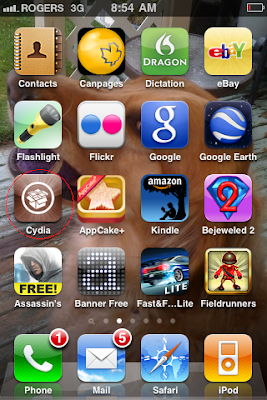
1st, your iPhone must be Jailbroken with Cydia installed. Launch Cydia as seen below:
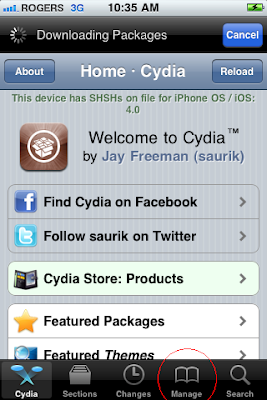
Allow Cydia to load and update. This may take several minutes. If there is an indicator on the "changes" tab at the bottom, install all changes before continuing.
Now click on Manage at the bottom:
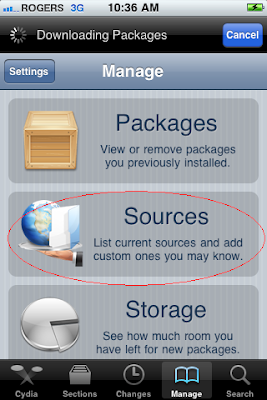
Now click on "Sources"
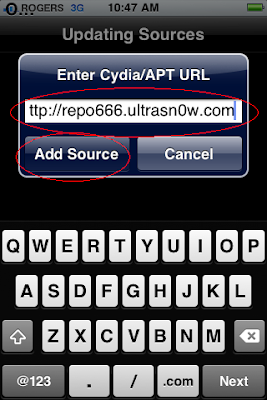
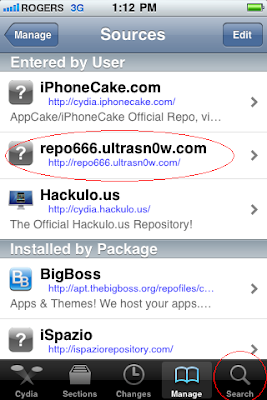
Now you need to add the ultrasn0w repository by clicking on "Edit" and enter http://repo666.ultrasn0w.com as seen below and hit "Add Source"
Verify the Ultrasn0w Repo is added and now click "Search"
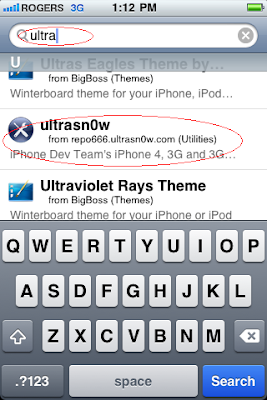
Select "Ultrasn0w" from the results list:
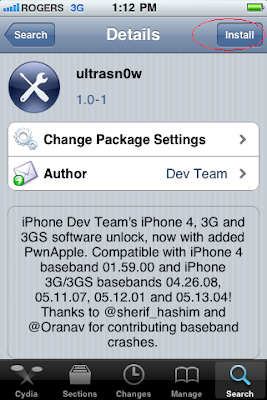
Select "Install"
And now "Confirm"
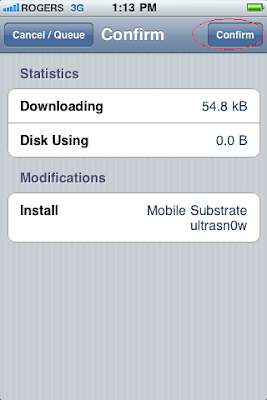
This process will take a few minutes and you will be asked to reboot your device. Once booted up, you are unlocked and can test this by entering another carriers SIM to the iPhone!!
1st, your iPhone must be Jailbroken with Cydia installed. Launch Cydia as seen below:

Allow Cydia to load and update. This may take several minutes. If there is an indicator on the "changes" tab at the bottom, install all changes before continuing.
Now click on Manage at the bottom:

Now click on "Sources"

Now you need to add the ultrasn0w repository by clicking on "Edit" and enter http://repo666.ultrasn0w.com as seen below and hit "Add Source"

Verify the Ultrasn0w Repo is added and now click "Search"

Select "Ultrasn0w" from the results list:

Select "Install"

And now "Confirm"

This process will take a few minutes and you will be asked to reboot your device. Once booted up, you are unlocked and can test this by entering another carriers SIM to the iPhone!!
Saturday, July 24, 2010
Friday, April 23, 2010
Thursday, April 15, 2010
MyWi: Turns iPhone into Wireless Hotspot
From iPhoneinCanada by Gary:

You may have heard the latest news about the iPad release being delayed in Canada. Steve Jobs also mentioned that the iPad cannot tether to the iPhone’s data connection. So if you are an iPhone user looking to purchase an iPad, are you going to subscribe to TWO data plans?
MyWi: The Best iPhone Hotspot-Maker-App-Thingy Yet
Not so fast, young grasshopper. There’s a hot new app via Cydia (jailbroken iPhones only) that’s been burning up the charts. It’s called MyWi and it turns your iPhone into a wireless hotspot. This will allow you to connect unlimited devices. I’ve tried it with my iPad (and even up to 3 iPads) and it works amazingly well.
MyWi ($9.99US) will be useful for iPhone owners that can’t get their tethering to work properly, or want to share their data connection with another device like an iPad, PSP, DS, etc.
Here’s a quick summary of how to get MyWi on your iPhone:
1. Jailbroken iPhone required. Check out our guide.
2. Search Cydia for “MyWi (No Rock)”. Buy it for $9.99 (they accept PayPal).
3. Install it, follow the prompts (will require resprings and agreeing to some terms).
4. Setup MyWi on the iPhone and enable WiFi Tethering.
5. Get your iPad/PSP/laptop etc and connect to your desired network name.
6. VOILA! Your iPhone is now a wireless hotspot!
Here are some screenshots of MyWi in action with my iPad:


I know a lot of you have been using MyWi already. It’s an amazing app and kudos to the devs for creating it. Let me know how MyWi works for you!
Use Bonus Code: TGiPJB for 100% up to $100 on 1st Deposit

You may have heard the latest news about the iPad release being delayed in Canada. Steve Jobs also mentioned that the iPad cannot tether to the iPhone’s data connection. So if you are an iPhone user looking to purchase an iPad, are you going to subscribe to TWO data plans?
MyWi: The Best iPhone Hotspot-Maker-App-Thingy Yet
Not so fast, young grasshopper. There’s a hot new app via Cydia (jailbroken iPhones only) that’s been burning up the charts. It’s called MyWi and it turns your iPhone into a wireless hotspot. This will allow you to connect unlimited devices. I’ve tried it with my iPad (and even up to 3 iPads) and it works amazingly well.
MyWi ($9.99US) will be useful for iPhone owners that can’t get their tethering to work properly, or want to share their data connection with another device like an iPad, PSP, DS, etc.
Here’s a quick summary of how to get MyWi on your iPhone:
1. Jailbroken iPhone required. Check out our guide.
2. Search Cydia for “MyWi (No Rock)”. Buy it for $9.99 (they accept PayPal).
3. Install it, follow the prompts (will require resprings and agreeing to some terms).
4. Setup MyWi on the iPhone and enable WiFi Tethering.
5. Get your iPad/PSP/laptop etc and connect to your desired network name.
6. VOILA! Your iPhone is now a wireless hotspot!
Here are some screenshots of MyWi in action with my iPad:


I know a lot of you have been using MyWi already. It’s an amazing app and kudos to the devs for creating it. Let me know how MyWi works for you!
Use Bonus Code: TGiPJB for 100% up to $100 on 1st Deposit
Tuesday, April 13, 2010

Monday, February 8, 2010
Pre-game show
AN UPDATE ON 3.1.3 from the iPhone DEV-TEAM:
On Tuesday, Apple released firmware 3.1.3 for the iPhone and iPod touches. Unless you’ve personally observed a problem with the reporting of your battery percentage, there’s no reason to update to 3.1.3. We know some of you will want to anyway. Superbowl Sunday’s PwnageTool 3.1.5 for Mac OS X will let you do so safely, preserving your jailbreak and ultrasn0w unlock. (If you use the blacksn0w unlock (at baseband 05.11.07), you need to stay at 3.1.2.)
iPhone 3G and 3GS unlockers should always be very wary to update their firmware. This is no exception. If you make a mistake along the way you may find yourself updating to official 3.1.3 in which case you will lose your unlock, possibly forever.
iPhone 3GS users (regardless of unlock) should stay away from this and all 3.1.3 jailbreak tools unless you know you have your “SHSH hashes” backed up via Cydia. That’s because if you make a mistake you may find yourself stuck at official 3.1.3 with no way to jailbreak or come back down to 3.1.2 to jailbreak.
If you really truly feel that you need to update, this version creates a custom 3.1.3 IPSW for you to restore to on your iPhone 2G, iPhone 3G, iPhone 3GS with early bootrom, iPod touch 1G, and iPod touch 2G with early bootrom. If you don’t know if you have an early bootrom or not, please avoid updating until you learn more.
You don’t need to be pre-jailbroken on anything but the iPod touch 2G early bootrom. And really for that device, it’s faster and easier to use redsn0w 0.9.4 as mentioned in our last post. For that matter, if you have an ipt1g, iphone2g, or iphone3g(and don’t need an unlock), you should use redsn0w too (but version 0.9.3). It’s faster and you won’t have to go through a full restore process (just do an update then run redsn0w, pointing it at 3.1.2 FW instead of 3.1.3).
If you have an iPhone 3GS, PwnageTool works if you’re currently at version 3.1.2 or below (down to 3.0). You don’t need to be already jailbroken — PwnageTool will ask you if you’re jailbroken after you’ve created the IPSW. Don’t use PwnageTool on the iPhone 3GS if you’re at 3.1.3, it just won’t work. Downgrade to 3.1.2 using the methods described here. If you can’t downgrade because you don’t have your 3GS 3.1.2 hashes on file with Cydia, you’ll need to sit out the 3.1.3 jailbreak.
We aren’t revealing any new exploits to Apple with this jailbreak. Everything here has been used before, it’s just a straightforward port of Pwnage2 and 24Kpwn to the new firmware. It’s possible the new firmware was released largely to flush out new exploits before the next big release. We won’t be biting.
We’d really like the above warnings and disclaimers to sink in. Please don’t download the files below and use them blindly.
Please feel free to ask any questions in the comment section below. We’ve got a bunch of expert help there, including our friendly moderators confucious and angie!
Official Bittorrent Releases
PwnageTool 3.15 Torrent - PwnageTool_3.1.5.dmg.5344262.TPB.torrent
SHA1 Sum = 16611fb60d088edd2fa5128e4f95f35d8e56a603
Unofficial Mirrors
The following links are unofficial download mirrors, you download these archives at your own risk, we accept no responsibility if your computer explodes or if it becomes part of a NASA attacking botnet or even worse if your hands fall off mid-way during the use of these files. We do not check these links and we accept no responsibility with regard to the validity of the files, the other content that these links may provide or with the content that is on the third-party linked site.
Always check the files that you have downloaded against our published SHA1 hash. We would prefer that you downloaded the official bittorrent release that is linked above, but you are welcome to try these if you really must. Mirror owners should email direct download links only (no rapidshare or filesharing sites please) to blog@iphone-dev.org — please don’t place mirrors in the comments as they will be deleted.
United States
http://begolli.com/downloads/mac/PwnageTool_3.1.5.dmg
http://download.sourcekills.com/files/devteam/PwnageTool_3.1.5.dmg
http://www.hackthatphone.net/PwnageTool_3.1.5.dmg
http://zombisoft.com/tools/PwnageTool_3.1.5.dmg
France
http://www.ipodtouchmasterfr.com/files/PwnageTool_3.1.5.dmg
Germany
http://apfelportal.de/host/images/PwnageTool_3.1.5.dmg
http://files.bestblog.de/iphone/PwnageTool_3.1.5.dmg
Romania
http://www.accesoriigsm.net/PwnageTool_3.1.5.dmg


On Tuesday, Apple released firmware 3.1.3 for the iPhone and iPod touches. Unless you’ve personally observed a problem with the reporting of your battery percentage, there’s no reason to update to 3.1.3. We know some of you will want to anyway. Superbowl Sunday’s PwnageTool 3.1.5 for Mac OS X will let you do so safely, preserving your jailbreak and ultrasn0w unlock. (If you use the blacksn0w unlock (at baseband 05.11.07), you need to stay at 3.1.2.)
iPhone 3G and 3GS unlockers should always be very wary to update their firmware. This is no exception. If you make a mistake along the way you may find yourself updating to official 3.1.3 in which case you will lose your unlock, possibly forever.
iPhone 3GS users (regardless of unlock) should stay away from this and all 3.1.3 jailbreak tools unless you know you have your “SHSH hashes” backed up via Cydia. That’s because if you make a mistake you may find yourself stuck at official 3.1.3 with no way to jailbreak or come back down to 3.1.2 to jailbreak.
If you really truly feel that you need to update, this version creates a custom 3.1.3 IPSW for you to restore to on your iPhone 2G, iPhone 3G, iPhone 3GS with early bootrom, iPod touch 1G, and iPod touch 2G with early bootrom. If you don’t know if you have an early bootrom or not, please avoid updating until you learn more.
You don’t need to be pre-jailbroken on anything but the iPod touch 2G early bootrom. And really for that device, it’s faster and easier to use redsn0w 0.9.4 as mentioned in our last post. For that matter, if you have an ipt1g, iphone2g, or iphone3g(and don’t need an unlock), you should use redsn0w too (but version 0.9.3). It’s faster and you won’t have to go through a full restore process (just do an update then run redsn0w, pointing it at 3.1.2 FW instead of 3.1.3).
If you have an iPhone 3GS, PwnageTool works if you’re currently at version 3.1.2 or below (down to 3.0). You don’t need to be already jailbroken — PwnageTool will ask you if you’re jailbroken after you’ve created the IPSW. Don’t use PwnageTool on the iPhone 3GS if you’re at 3.1.3, it just won’t work. Downgrade to 3.1.2 using the methods described here. If you can’t downgrade because you don’t have your 3GS 3.1.2 hashes on file with Cydia, you’ll need to sit out the 3.1.3 jailbreak.
We aren’t revealing any new exploits to Apple with this jailbreak. Everything here has been used before, it’s just a straightforward port of Pwnage2 and 24Kpwn to the new firmware. It’s possible the new firmware was released largely to flush out new exploits before the next big release. We won’t be biting.
We’d really like the above warnings and disclaimers to sink in. Please don’t download the files below and use them blindly.
Please feel free to ask any questions in the comment section below. We’ve got a bunch of expert help there, including our friendly moderators confucious and angie!
Official Bittorrent Releases
PwnageTool 3.15 Torrent - PwnageTool_3.1.5.dmg.5344262.TPB.torrent
SHA1 Sum = 16611fb60d088edd2fa5128e4f95f35d8e56a603
Unofficial Mirrors
The following links are unofficial download mirrors, you download these archives at your own risk, we accept no responsibility if your computer explodes or if it becomes part of a NASA attacking botnet or even worse if your hands fall off mid-way during the use of these files. We do not check these links and we accept no responsibility with regard to the validity of the files, the other content that these links may provide or with the content that is on the third-party linked site.
Always check the files that you have downloaded against our published SHA1 hash. We would prefer that you downloaded the official bittorrent release that is linked above, but you are welcome to try these if you really must. Mirror owners should email direct download links only (no rapidshare or filesharing sites please) to blog@iphone-dev.org — please don’t place mirrors in the comments as they will be deleted.
United States
http://begolli.com/downloads/mac/PwnageTool_3.1.5.dmg
http://download.sourcekills.com/files/devteam/PwnageTool_3.1.5.dmg
http://www.hackthatphone.net/PwnageTool_3.1.5.dmg
http://zombisoft.com/tools/PwnageTool_3.1.5.dmg
France
http://www.ipodtouchmasterfr.com/files/PwnageTool_3.1.5.dmg
Germany
http://apfelportal.de/host/images/PwnageTool_3.1.5.dmg
http://files.bestblog.de/iphone/PwnageTool_3.1.5.dmg
Romania
http://www.accesoriigsm.net/PwnageTool_3.1.5.dmg

Wednesday, February 3, 2010
3.1.3 and thee ***UPDATES***
From the iPhone-Dev Team
Please see original post HERE
Update 2: [Don’t go near this if you have 3GS, newer ipt2G, or any ipt3G] Can confirm that this method works for iPhone 3G and iPod touch 1G too. Don’t do it for iPhone 3G if you need an unlock though (really, don’t!). For older iPod touch 2G, we’ll need a small (1-character) change in redsn0w source.
Update 3: [Don’t go near this if you have 3GS, newer ipt2G, or any ipt3G] For those with older (non-MC) iPod touch 2G, we’ve compiled a special version of redsn0w meant just for you: Mac and Windows. You guys can get in on the “3.1.2 loophole” too using this special version. Don’t try this if you have a newer iPod Touch 2G or if you’re not completely sure what version you have. And of course don’t try it for 3GS or ipt3G either.
That about does it for the 3.1.2 redsn0w loophole. It can only be used by: those who don’t need the 3G/3GS unlock, and only owners of iPhone 2G, iPhone 3G (not unlockers!), iPod 1G, and iPod 2G older version. Everyone else please wait for official support in the tools.
Use Bonus Code: TGiPJB for 100% up to $100 on 1st Deposit
Please see original post HERE
Update 2: [Don’t go near this if you have 3GS, newer ipt2G, or any ipt3G] Can confirm that this method works for iPhone 3G and iPod touch 1G too. Don’t do it for iPhone 3G if you need an unlock though (really, don’t!). For older iPod touch 2G, we’ll need a small (1-character) change in redsn0w source.
Update 3: [Don’t go near this if you have 3GS, newer ipt2G, or any ipt3G] For those with older (non-MC) iPod touch 2G, we’ve compiled a special version of redsn0w meant just for you: Mac and Windows. You guys can get in on the “3.1.2 loophole” too using this special version. Don’t try this if you have a newer iPod Touch 2G or if you’re not completely sure what version you have. And of course don’t try it for 3GS or ipt3G either.
That about does it for the 3.1.2 redsn0w loophole. It can only be used by: those who don’t need the 3G/3GS unlock, and only owners of iPhone 2G, iPhone 3G (not unlockers!), iPod 1G, and iPod 2G older version. Everyone else please wait for official support in the tools.
Use Bonus Code: TGiPJB for 100% up to $100 on 1st Deposit
Tuesday, February 2, 2010
Apple releases iPhone OS 3.1.3 with battery reporting fix
By AppleInsider
Apple on Tuesday afternoon released version 3.1.3 of its iPhone OS software for the iPhone and iPod touch, bringing with it improved accuracy of reported battery level on the iPhone 3GS.
The update also reportedly resolves an issue where third-party applications would not launch in some instances. It also addresses a bug that could cause applications to crash when using the Japanese Kana keyboard.
iPhone OS 3.1.3 also includes a number of security updates related to CoreAudio, ImageIO, Recovery Mode and WebKit. Full details are available in the support document on Apple's Web site.

The update for the iPhone and iPod touch operating system is available for download through iTunes.
The last update, iPhone OS 3.1.2, arrived last October. It fixed an issue that would cause the iPhone to not wake from sleep, and resolved a glitch that could interrupt cellular network services until restart.
Last week, iPhone OS 3.2 was revealed as part of the new multi-touch iPad. For now, the operating system upgrade is for the iPad hardware only, which is scheduled to launch before the end of March.
iPhone OS 3.2 offers a number of enhancements over the current operating system, including a home screen that can be viewed either horizontally or vertically. It is not yet known what additional features in the iPad version of the iPhone OS could show up in the iPhone or iPod touch.


Apple on Tuesday afternoon released version 3.1.3 of its iPhone OS software for the iPhone and iPod touch, bringing with it improved accuracy of reported battery level on the iPhone 3GS.
The update also reportedly resolves an issue where third-party applications would not launch in some instances. It also addresses a bug that could cause applications to crash when using the Japanese Kana keyboard.
iPhone OS 3.1.3 also includes a number of security updates related to CoreAudio, ImageIO, Recovery Mode and WebKit. Full details are available in the support document on Apple's Web site.

The update for the iPhone and iPod touch operating system is available for download through iTunes.
The last update, iPhone OS 3.1.2, arrived last October. It fixed an issue that would cause the iPhone to not wake from sleep, and resolved a glitch that could interrupt cellular network services until restart.
Last week, iPhone OS 3.2 was revealed as part of the new multi-touch iPad. For now, the operating system upgrade is for the iPad hardware only, which is scheduled to launch before the end of March.
iPhone OS 3.2 offers a number of enhancements over the current operating system, including a home screen that can be viewed either horizontally or vertically. It is not yet known what additional features in the iPad version of the iPhone OS could show up in the iPhone or iPod touch.

3.1.3 and thee
From the Dev-Team Blog:
WARNING! At 10.30AM PST on February 2nd 2010 Apple released the 3.1.3 version (7E18) of the iPhoneOS.
If you care about your jailbreak and unlock, don’t update your device - 3G and 3G(S) owners should pay particular attention to this warning.

*PwnageTool and redsn0w are not yet compatible with 3.1.3
*There is no estimated release time for compatible tools (please don’t bug us about this).
*Any information we have regarding this update will be posted here.
*You can also follow us on twitter - @iphone_dev
Update 1: Thanks to daring experimenters in the comments, we can confirm that yesterday’s redsn0w works for today’s 3.1.3 update for iPhone 2G. Just point it at the 3.1.2 iPhone 2G IPSW after doing update or restore to 3.1.3. So far we’ve only confirmed this for iPhone 2G. (Note that if this does work for 3G/3GS too, you can *only* use it if you don’t care about the unlock.)
Use Bonus Code: TGiPJB for 100% up to $100 on 1st Deposit
WARNING! At 10.30AM PST on February 2nd 2010 Apple released the 3.1.3 version (7E18) of the iPhoneOS.
If you care about your jailbreak and unlock, don’t update your device - 3G and 3G(S) owners should pay particular attention to this warning.
*PwnageTool and redsn0w are not yet compatible with 3.1.3
*There is no estimated release time for compatible tools (please don’t bug us about this).
*Any information we have regarding this update will be posted here.
*You can also follow us on twitter - @iphone_dev
Update 1: Thanks to daring experimenters in the comments, we can confirm that yesterday’s redsn0w works for today’s 3.1.3 update for iPhone 2G. Just point it at the 3.1.2 iPhone 2G IPSW after doing update or restore to 3.1.3. So far we’ve only confirmed this for iPhone 2G. (Note that if this does work for 3G/3GS too, you can *only* use it if you don’t care about the unlock.)
Use Bonus Code: TGiPJB for 100% up to $100 on 1st Deposit
Subscribe to:
Posts (Atom)